
Install Dialogue Graph System 4.0
Install the complete DGS bundle, confirm its Unity dependencies, and open the included scene before building your first dialogue.
Before you begin
- The declared minimum is Unity 6000.3 or newer. The observed DGS 4.0 validation editor is Unity 6000.3.6f1 on Windows; that observation is not a promise of support for every later Unity release.
- Have a Unity project that can resolve DGS declared package dependencies:
com.unity.ugui2.0.0 andcom.unity.nuget.newtonsoft-json3.2.2. DGS uses TextMesh Pro for its runtime text. - Save a copy of your project before importing or upgrading a large asset package.
DGS product version 4.0.0 and the graph's serialized schema version are separate version numbers. The 4.0 editor manages the current graph schema when you open and save a graph.
Import the DGS bundle
- Open the Unity project you want to use.
- Import Dialogue Graph System from the delivery method supplied for your purchase. If you received a Unity custom package, use Assets > Import Package > Custom Package… and select that file. If you received extracted product files, preserve their
.metafiles and copy the supplied product asset folders while Unity is closed. Resolve required Unity packages through Package Manager; preserve your existing project manifest. - Let Unity finish importing and compiling. In Package Manager, resolve the declared UGUI and Newtonsoft JSON dependencies if your delivery method did not install them automatically. TMP Essential Resources are project content and are not included in the DGS asset; import them from the TextMeshPro menu when Unity requests them. Do not add the separate
com.unity.textmeshproshim. - In Unity, choose Window > TextMeshPro > Import TMP Essential Resources if your project has not imported those resources before. This is a one-time Unity project resource setup, not an extra DGS package.
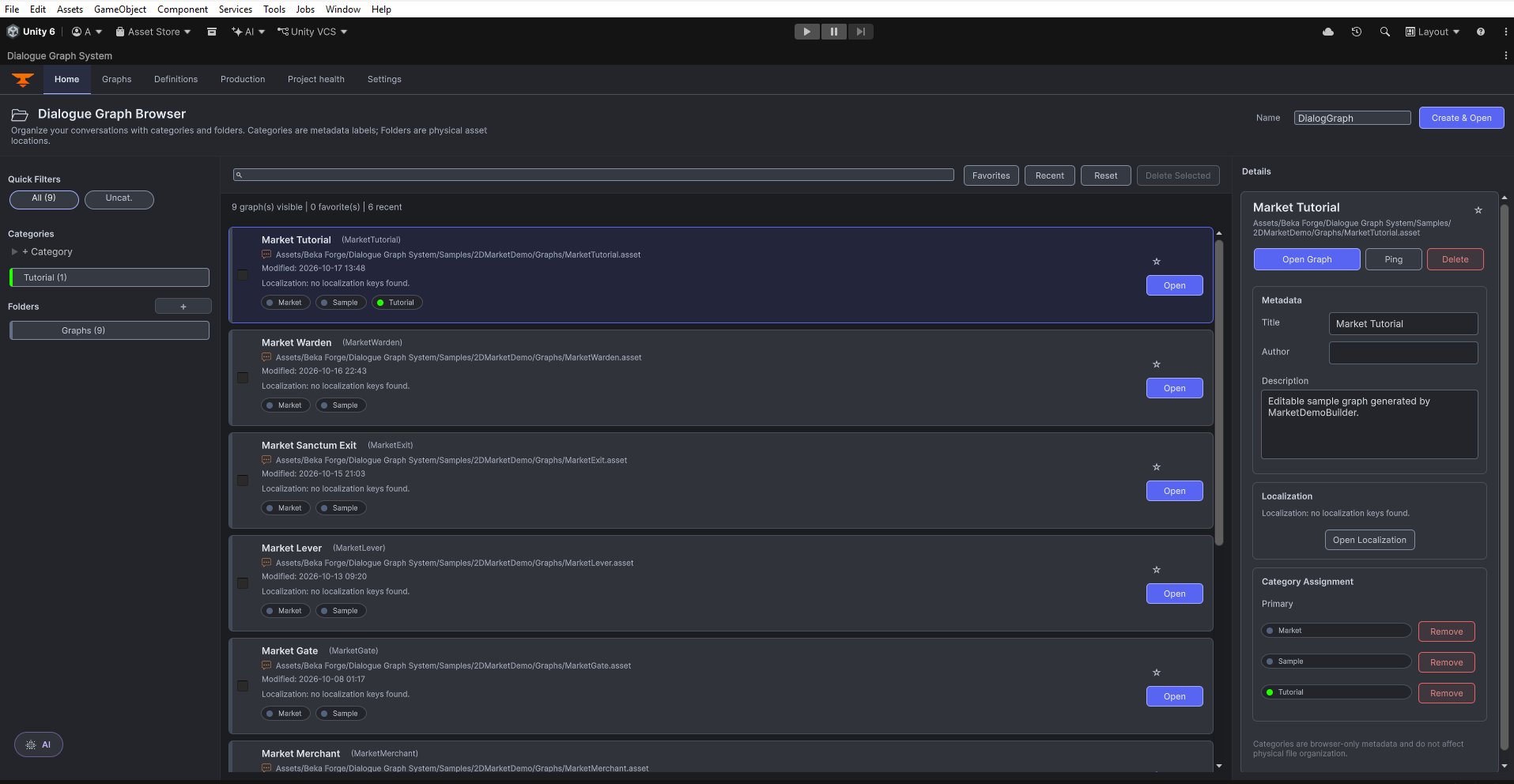
The complete delivery has three product roots under Assets/Beka Forge/: Dialogue Graph System, Camera Controller, and Interaction System. Import all three for the bundled sample. Banter, Sound Sequencer, and AI Extension are included in that delivery; only AI Providers is supplied separately.
Expected result: the Console has no DGS compilation errors, and the main authoring window opens from Tools > Beka Forge > Dialogue Graph System > Open Editor.
Open the included sample
- In the Project window, open
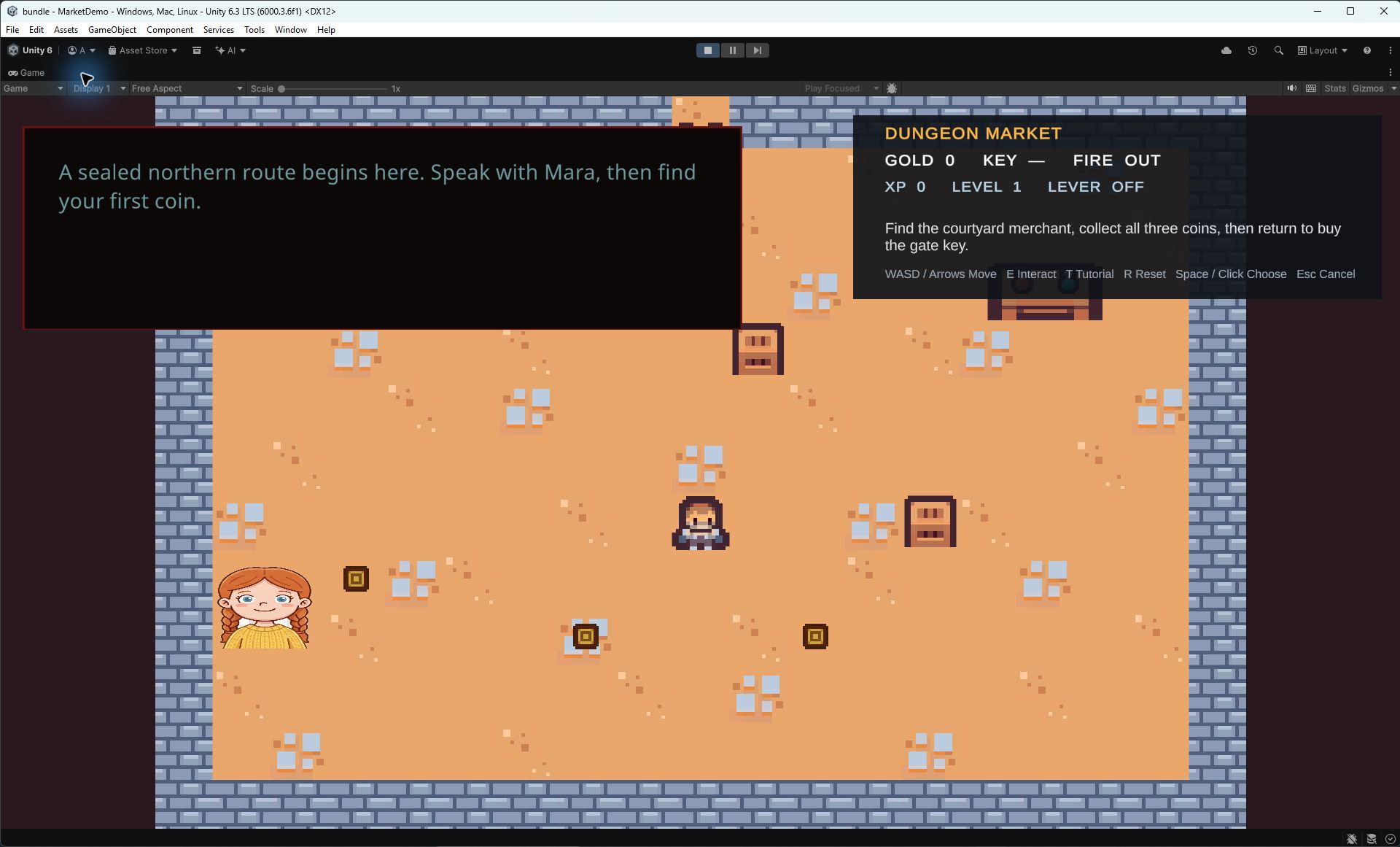
Assets/Beka Forge/Dialogue Graph System/Samples/2DMarketDemo/Scenes/MarketDemo.unity. - Wait for the scene to finish loading, then press Play.
- Use the sample's on-screen instructions. In the current sample, move with WASD or arrow keys, interact with E, and advance or choose a dialogue response with Space or a click.
Expected result: the Market Demo starts in its own scene and dialogue appears in the sample's configured runtime UI. This confirms the included sample setup; it does not replace testing the manager and UI in your own scene.
Upgrading existing graphs
Keep a project backup before updating DGS. Opening a graph does not mean every existing graph must be migrated. When the editor detects missing legacy identity or port metadata, it can show Upgrade Dialogue Graph.
- Read the upgrade prompt for the selected graph. Choose Upgrade With Backup to keep a graph backup before upgrading, or Later to defer the operation.
- After a successful upgrade, review the reported schema, link counts and backup path. Open the graph sidebar, select Validate, and run Validate Graph.
- Test the conversation and its branches in your own scene before replacing your working project copy. The browser examples do not migrate Unity assets.
AI package boundary
The DGS bundle includes the base Interaction Playground and optional typed Input System adapter. SimpleInteractionDemo is not included in the DGS bundle; use the base Playground as the bundled starting sample. The Core package and ordinary graph authoring/runtime do not require AI Providers. AI Extension is included with the current DGS bundle, but provider-backed AI workflows require the separate AI Providers 2.2.0 package. Install that package separately when it is available to you. Do not add provider-specific scripting define symbols by hand; the package's dependency-ready gate controls its AI integrations.
If Unity reports a problem
- Missing TextMesh Pro resources: import TMP Essential Resources from the Window menu above, then reopen the sample.
- UGUI types are missing: open Package Manager and resolve the package dependency declared by DGS before recompiling.
- The menu item is absent: wait for compilation to finish and check the Console for editor-assembly errors. The menu is Tools > Beka Forge > Dialogue Graph System > Open Editor.
- AI is unavailable: confirm that the separate AI Providers 2.2.0 package is installed and compiled. Core dialogue authoring and runtime can still be used without it.